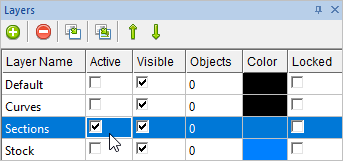
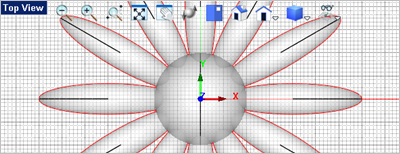
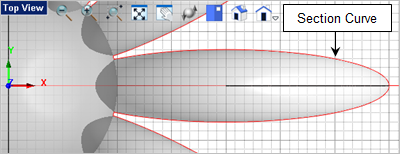
In this step we will create section curves that lie on the XY plane. Section curves are useful for creating offset boundaries which in turn can be used for toolpath containment. 1.Open the Layer Manager
2.Section curve are created in the plane of the active layer. We want the section curves to be generated on the XY plane so activate the Top View 3.Form the Curve Modeling
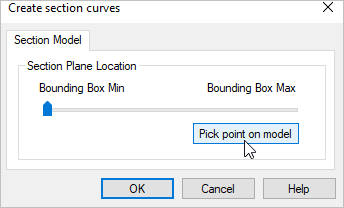
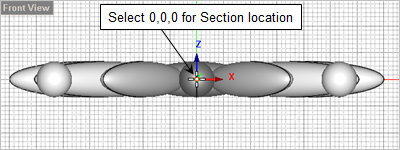
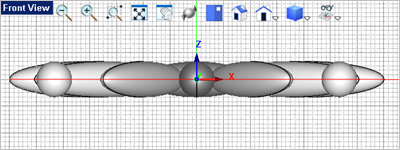
4.If you move the slider you will see dynamically where the section curves lie. In this case, with the Top View 5.We want to precisely locate the section plane so select the Pick point on model button from the dialog. 6.Then in the Front View
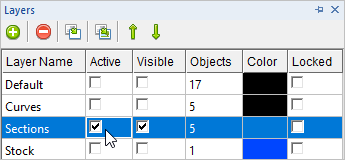
7.Open the Layer Manager and set the Active Layer to Sections. Refer to the previous steps for displaying and using the Layer Manager
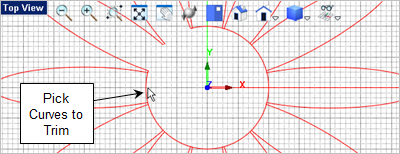
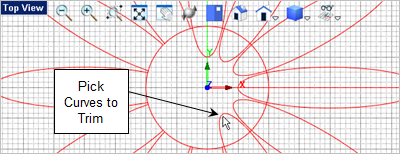
In the following steps we will trim our section curves and merge them. 8.From the Top View 9.From the Curve Modeling 10.Pick on the curve where you want it to be trimmed away.
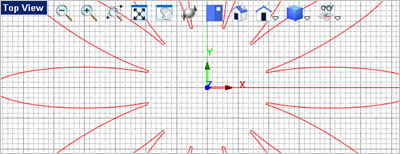
11.Press the <Enter> to repeat the Trim 12.Repeat this procedure until all of the curves are trimmed as shown below.
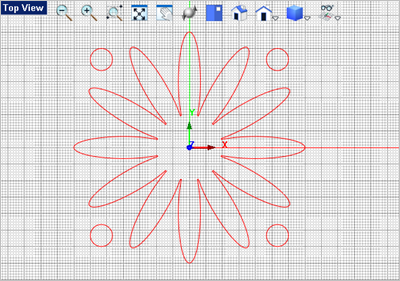
13.Now scroll to zoom out to see all of the curves.
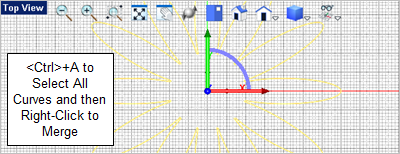
14.Press <Ctrl+A> to select all of the curves.
15.Now from the Curve Modeling |
 and set the