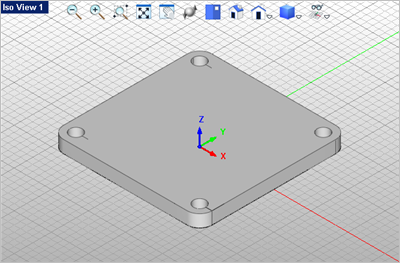
| Extrude the Base Plate |
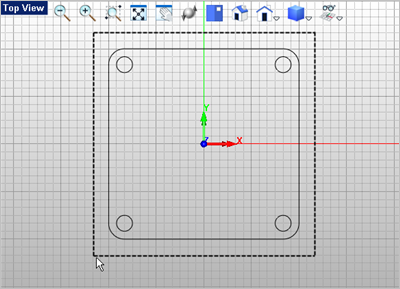
In this step we will extrude our drawing to model the base plate in 3D. 1.First, window select the drawing by picking two points. Click and hold the left mouse button to drag a window around the drawing as shown below. If you drag from left to right everything completely the window is selected. If you drag from right to left everything that cross over the window will be selected.
2.After your drawing is selected, go to the Mesh Modeling tab 3.Now move the cursor down to the Front View
4.Save your work by selecting the Save icon from the Quick Access toolbar.
|
 from the
 and you will see that you can drag the height of the extrusion. Select the second grid point in the positive Z direction or type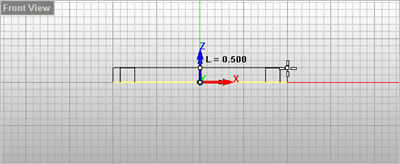
 view is shown below.