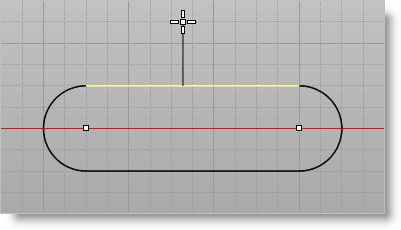
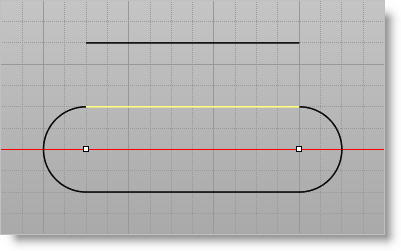
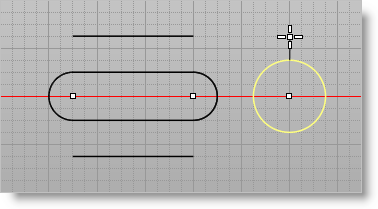
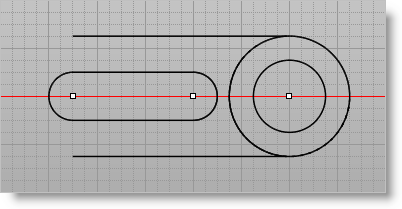
1.Select the Curve Modeling tab 2.Keep the Curve Modeling Ribbon Bar displayed and then select the top horizontal line. 3.Pick the Offset Curve
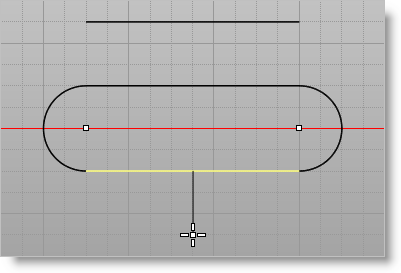
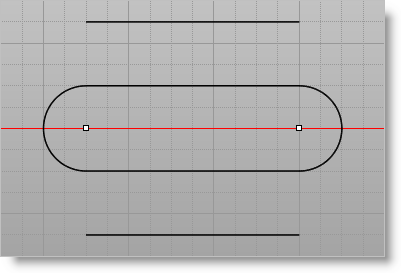
4.Repeat the offset for the horizontal line at the bottom, making sure to keep the cursor and directional indicator line pointing downward.
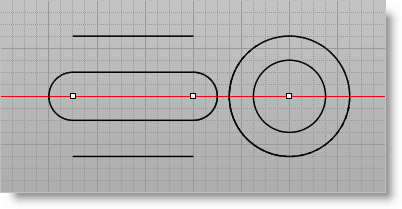
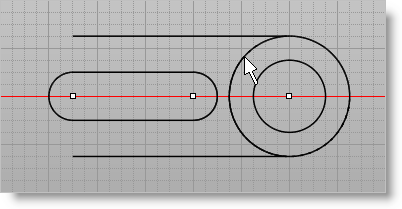
5.Select the larger circle on the right and then pick the Offset Curve icon again. 6.With the cursor, point the offset direction outward from the circle, type 0.50 and press Enter.
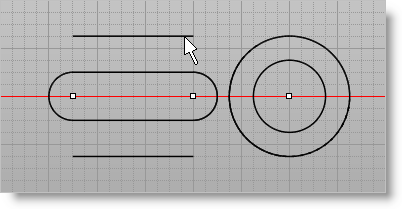
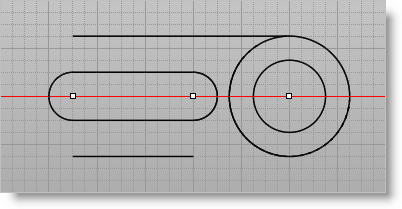
7.To modify the offset lines so that they meet the larger circle, pick the Extend Curve 8.Click one of the offset lines towards the right. The line extends to the point where it meets the circle.
9.Repeat the extend curve for the line at the bottom.
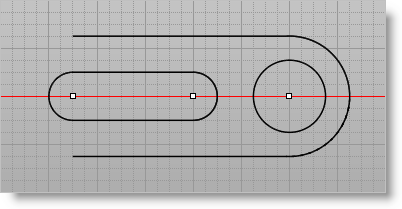
10.Select Trim
|


 For
For