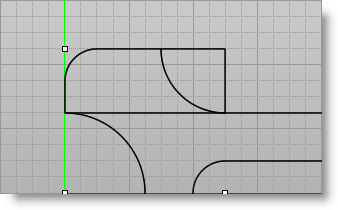
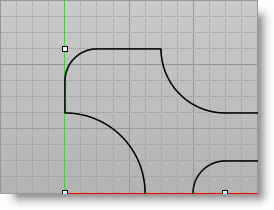
We will now create the left section of the spanner using the filleting and mirroring tools. We will start by creating the arc at the end of the spanner. 1.Select the Curve Modeling tab 2.From the Curve Modeling Ribbon Bar, select Center, Start, Angle Pts. 3.For the Center, type 0,0 in the Command Prompt 4.For Start, type 0,1.25 in the Command Prompt 5.For End, type -180 in the Command Prompt
6.Now create a reference point located at 0,2.25 using the Point
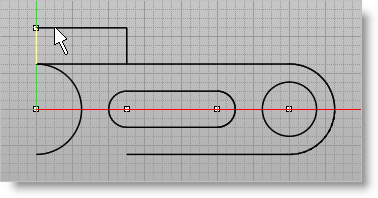
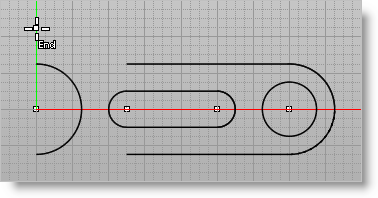
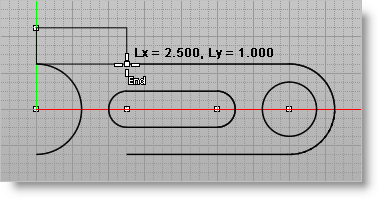
7. From the Status Bar, toggle End Point Snap 8.Now, select Rectangle 9.For the 1st corner pick the point you just created and for the other corner snap to the End Point of the horizontal line as shown below.
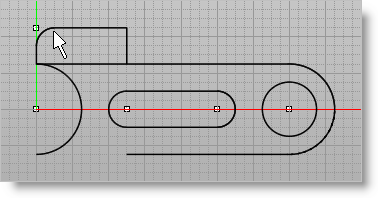
10.This rectangle is one object – one multi-segmented curve. In order to be able to edit or modify this rectangle, it must be broken into individual lines. 11.Select the rectangle and then right-click or press Enter. 12.Select Fillet 13.For Radius enter 0.5 and press Enter. 14.Select the 2 curves as shown below to fillet the curves.
15.Let's now create another arc. Again, from the Curve Modeling Ribbon Bar, select Center, Start, Angle Pts. 16.For Center pick the end point on the upper right corner of the rectangle.
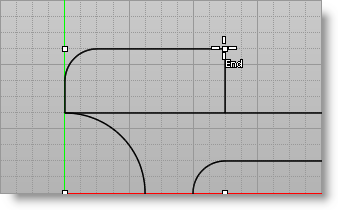
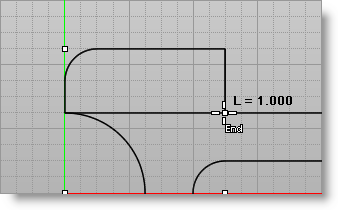
17.For Start pick the lower right corner of rectangle as shown below.
18.For Angle, type in -90 and then press Enter to create an arc in the top right corner of the rectangle.
19.To clean up the corners we select Trim 20.Select trimming curves to obtain the shape as shown below:
|



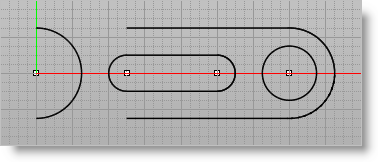

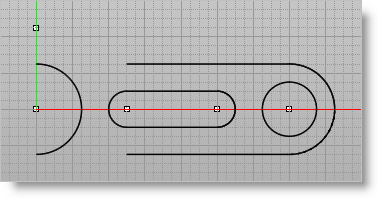

 .
.
 To do this, select the
  .
.