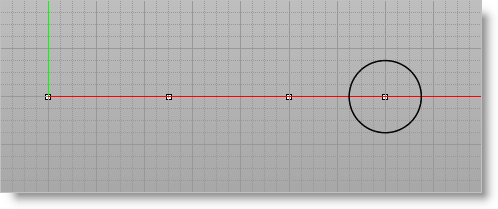
1.Select the Curve Modeling tab 2.Keep the Curve Modeling Ribbon Bar displayed. 3.Select the Circle Center, Center, On Pt icon. 4.For the center point, pick last created point or type 7,0 5.Specify 1.50 for Diameter in the command bar
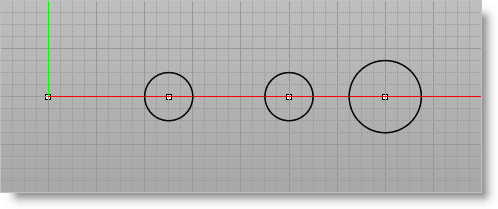
6.Repeat the Circle command to create 2 more circles at the center points (2.5,0 and 5,0) enter a Diameter of 1.00 for each circle.
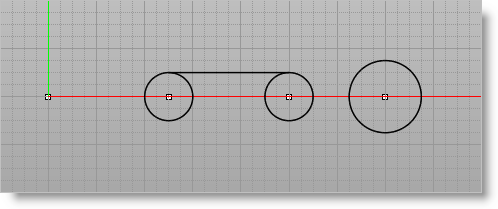
7.From the Status Bar, toggle Grid Snap off and then toggle Quad Point Snap on. 8.Select the Create Single Line icon. 9.Create a line between the top quadrants points of the smaller circles.
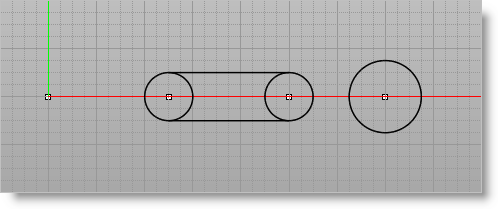
10.Repeat the line for lower quadrant points.
|