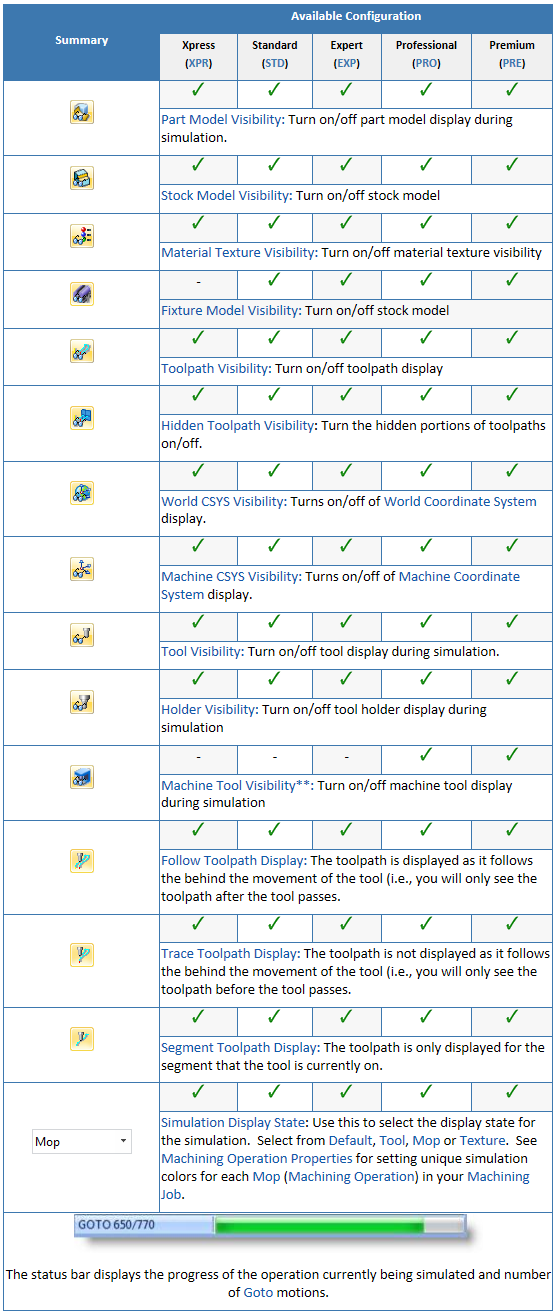
Select the Simulate tab to run cut material simulations and toolpath animations. This tab also provides controls to vary the simulation speed, set the simulation preferences and toggle the display state of various simulation components.
Note: See Right-Click Commands for a complete list of all right-click commands available from the Machining Operations (Mops) Browser and the Machining Objects (Mobs) Browser.

1.Use the functions on the Program tab of the Machining Browser as need to define toolpaths and make sure they are listed under the Machining Job tree. 2.Select the Toolpath operations from the Machining Job tree and either right-click and select Simulate or go directly to the Simulate tab. 3.Pick Play to run the simulation. Understand that the in-process stock will only display in-screen if all toolpath operation prior to the one you are simulating have already been simulated. 4.Inspect the in-process stock from the simulation until you are comfortable with simulation results. 5.There are other functions on the Simulate tab to control the simulation such as Stop, Pause, To End, etc. 6.The Compare button can be used to analyze the accuracy of the simulation as compared to the part model. (Not available in all configurations) |
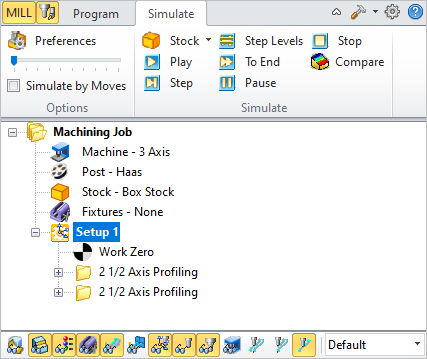 The Machining Operations (MOps) Browser, Simulate Tab |
The following controls are available on the Simulate tab:
|
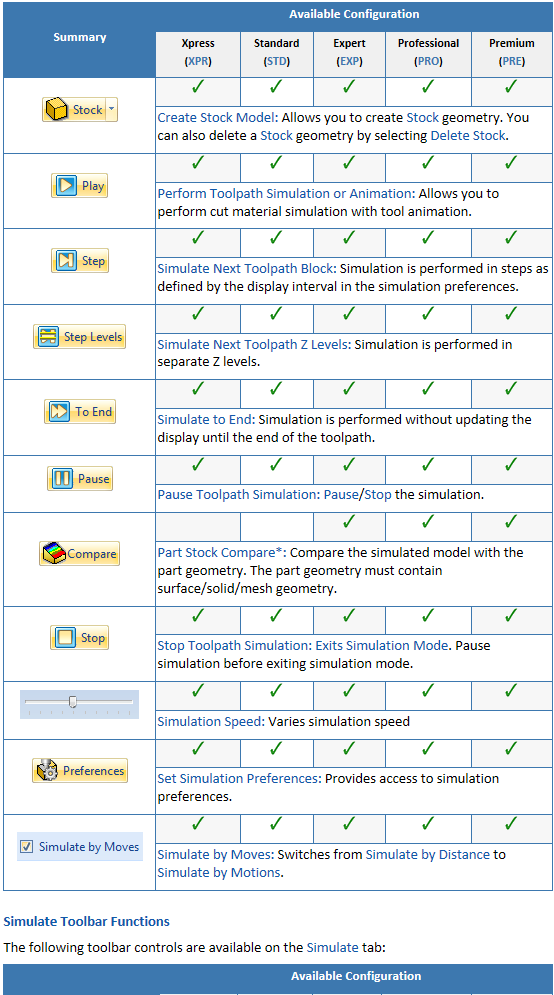
The following toolbar controls are available on the Simulate tab:
|