The Machining Objects Browser has multiple tabs located at the top to work with different types of machining objects such as Tools, Regions, K-Bases, etc. Each tabbed view also incorporates a toolbar at the top. The toolbars on each tab group all of the functions associated with the type of object in the tab.
The Machining Objects Browser can be toggled on and off by selecting the toggle button located at the top left corner of the Machining Browser. This toggle button is shown below.
Note: See Right-Click Commands for a complete list of all right-click commands available from the Machining Operations (Mops) Browser and the Machining Objects (Mobs) Browser.

1.Use the tabs on the Machining Objects Browser to assist you in creating Tools, Regions, etc. 2.You must have at least one tool shown in the Tools tab in order to generate a toolpath operation. 3.Each tab has a toolbar with functions related to that tab. become familiar with each button on this toolbar. 4.If you do not see these tab (Tools, Regions, etc.) make sure the Machining Objects Browser is toggled ON. Use the second button at the top-right, next to the Program tab to toggle this browser on and off. 5.Pay attention to the text display located at the very bottom of the browser. It tells you information about the active tool. Foe example, select a toolpath from the Machining Job tree and information about the tool being used for that operation will be visible at the bottom of the browser. |
 Locating the Machining Objects Browser toggle tab
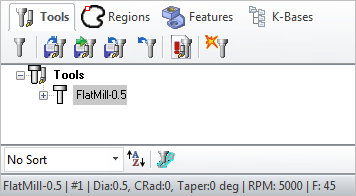 The Machining Objects (MObs) Browser The status bar displays the currently selected tool, spindle speed and cut feedrate.
|

|
|||||||||||||||||||||||||||||||||||||||||||||||||||||||||||||


