Selecting the Regions tab under the Machining Objects (Mobs) Browser displays the Machining Regions manager.
Note: See Right-Click Commands for a complete list of all right-click commands available from the Machining Operations (Mops) Browser and the Machining Objects (Mobs) Browser.

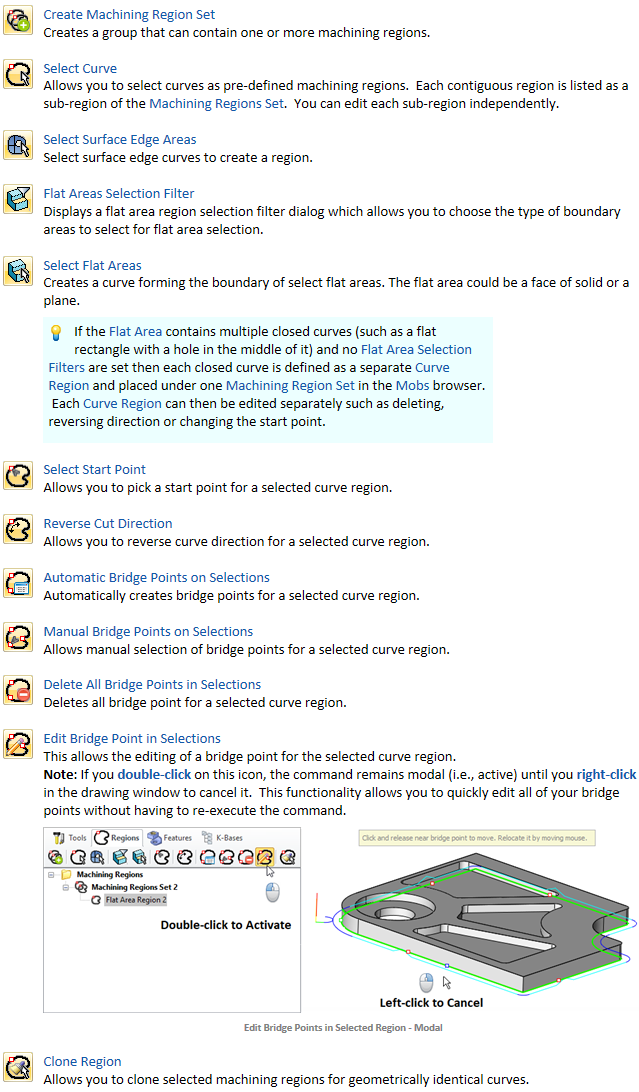
1.Use the Regions tab to create Pre-Defined regions from your 2D drawing or 3D model/ The toolbar contains all of the functions you need to do this. 2.Note: This tab can save you a lot of time by defining regions to be machined. For example, once you create a region, you can use the Clone Region button to duplicate that regions on all other visible geometry. Other commands are also available so please get to know this toolbar. |
There are right-click commands available for use in the Regions tab. |
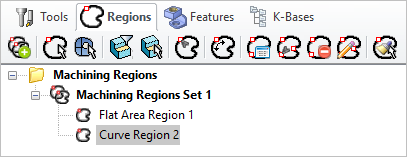 Regions Tab, Machining Objects (MObs) Browser |
•Create Pre-defined Machining Regions from curves and flat areas •Specify Start Point for closed curves •Reverse Curve Direction •Create Automatic Bridge Points •Manually Define Bridge Points •Edit Bridge Points •Edit predefined regions •Delete Bridge Points These can then be selected as machining features for generating machining operations. |
|
You can right-click on a Curve Region listed in the Mobs Browser to perform various functions. These are listed below: 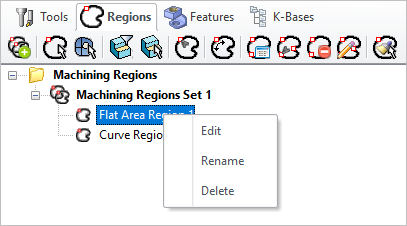 Right-click Options on a Tool
|