Selecting the Features tab under the Machining Objects Browser displays the Feature Manager. It allows you to create and work with detected features from your 3D solid model. See Understanding Feature Machining in RhinoCAM for important information about Machining Features.
Note: See Right-Click Commands for a complete list of all right-click commands available from the Machining Operations (Mops) Browser and the Machining Objects (Mobs) Browser.
|
 Important:
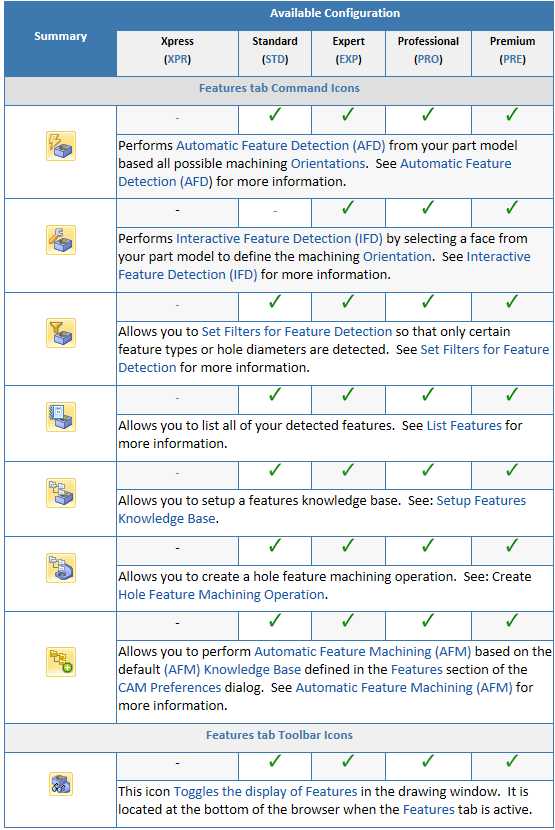
1.Use the Features tab to use Feature Recognition to locate machinable features. 2.You can do this by using the first two button on the left side of the toolbar. 3.Once machinable features ate define, use the other buttons to create machining operations on those features. |
There are right-click commands available for use in the Features tab. |
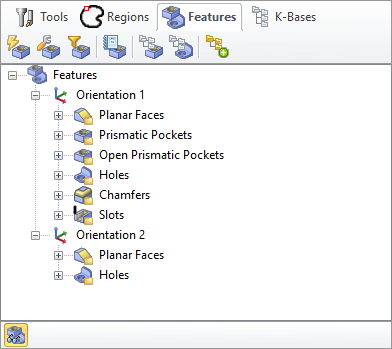 The Machining Objects (MObs) Browser, Features Tab |
|
After you have performed either AFD or IFD on your part model, you can move the cursor over a part feature and its identification name will display. This is the name created for the feature and listed in the Features tree. 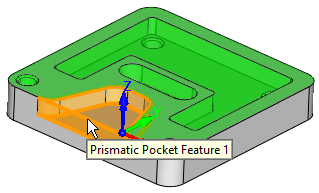 Feature Identification on Cursor Highlight |
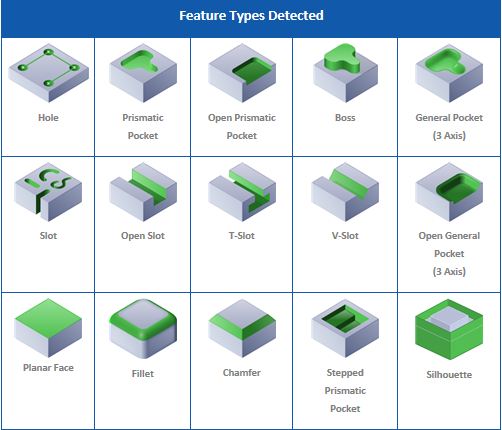
The feature types recognized are listed in the table below:
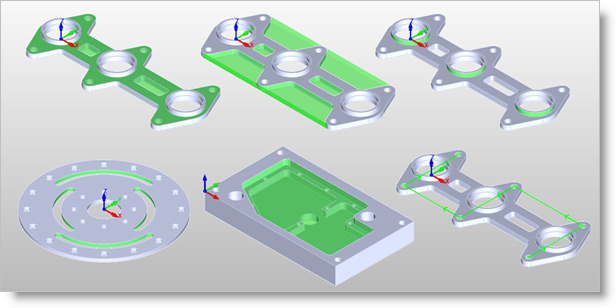 Some 2 Axis Feature Examples 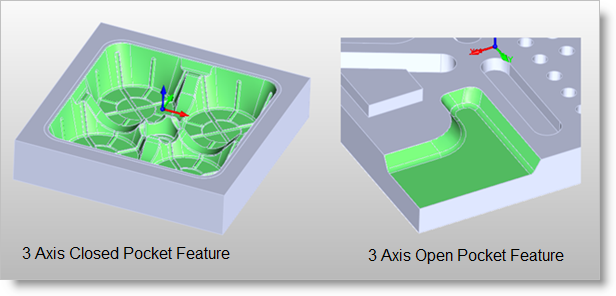 Some 3 Axis Feature Examples |