The Machining Browser, sometimes called the Machining Operations (Mops) Browser, has two main modes of operation represented by tabs at the top of the window. These are Program and Simulate. Each tabbed view also incorporates a ribbon toolbar at the top. These toolbars group all of the functions associated with the type of object in the tab.
Note: See Right-Click Commands for a complete list of all right-click commands available from the Machining Operations (Mops) Browser and the Machining Objects (Mobs) Browser.

1.Open a 2D or 3D part file to program toolpaths for. 2.Drop down the Main Menu and select MILL to load the Mill Machining Browser. 3.Start at the top left of the Program tab and work your way to the right thru the various menus to create toolpaths. 4.Use the functions in the Machining Objects Browser as need to define CAM Objects such as Tools, Regions, etc. 5.Then move to the Simulate tab and run the simulation. DO NOT skip this step! You can spot issues during the simulation even with very basic geometry and toolpaths. 6.Once satisfied, select the operation from the Machining Job tree and pick Post. 7.Verify that the posted G-Code file is what you are expecting and then run the file on your CNC machine. |
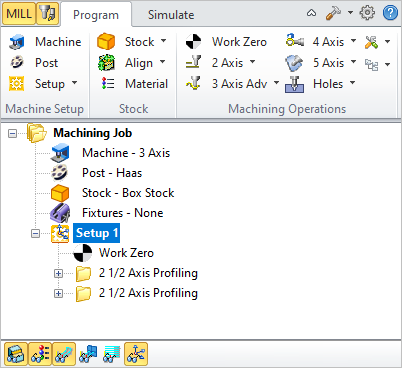 The Machining Operations (MOps) Browser, Program Tab |