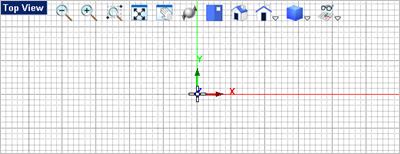
In this step you will model the center body using a solid sphere and non-uniform scaling. Note: You can replace the Solid commands with Mesh commands if desired. 1.Activate the Top View 2.Select the Solid Modeling 3.Now select the Sphere 4.In the Status Bar make sure the Grid Snap is On 5.For the center point select the grid point at (0,0,0) or just enter the coordinates 0,0,0 in command input bar
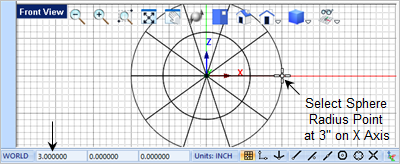
6.For the sphere radius, enter 3,0,0
7.Select the solid sphere you just created.
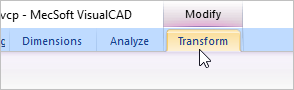
8.You see the Modify / Transform tab
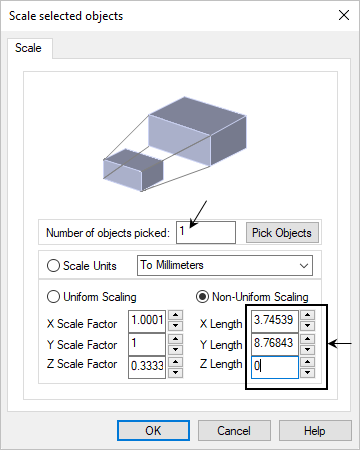
9.Select the Scale 10.From the Scale Selected Objects dialog, select the Non-Uniform Scaling option.
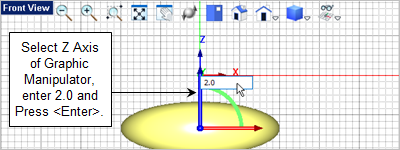
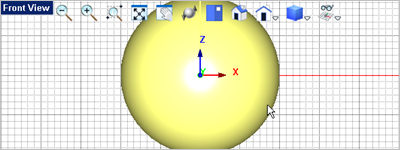
11.Set the X Length to 6, Y Length to 6 and the Z Length to 2. 12.Pick OK and the sphere is scaled as shown below. 13.Now press <Enter> to accept the modification. 14.Let's move the scaled sphere up to the origin. First make sure the Graphic Manipulator is On. The icon is located on the Status Bar 15.Now select the sphere. 16.Select the Blue Z arrow to display the input field, enter 2.0 and press <Enter>. The sphere will move up in the positive Z Axis to the 0,0,0 origin as shown below.
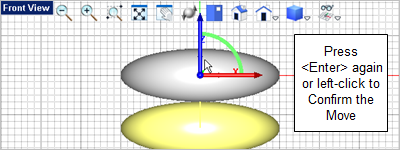
17.Press <Enter> again to accept the move.
|





 appear on the right end of the