This button allows you to set preferences such as File Load Options, Display Options, Mesh Export Options, and Closed Mesh Options.
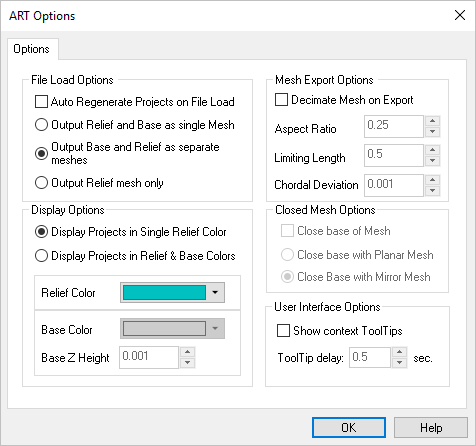
Dialog Box: ART Options
Auto Regenerate Projects
on File Load will automatically regenerate files with operations upon being loaded if box is checked.
Output Relief and Base as single mesh
will output 3D reliefs and base as a single mesh within project if box is checked. This option combines the relief and base meshes into one single mesh upon export to CAD.
Display Projects in Single Relief Color
will display the entire project using a single color if this radio button is selected.
Display Projects in Relief & Base Colors
will display the relief and base in separate colors if so desired. Once the selection of this radio button is made, it enables the drop down menu for Base Color.
Relief Color
drop down menu is for selecting the color to be used for the reliefs.
Base Color
drop down menu is for selecting the color to be used for the base of the project.
Base Z Height
determines the height of the project from the zero point of the Z axis coordinate. The desired Z height can be specified by either entering a numerical value or using the up/down arrows.
Decimate Mesh on Export
This option can be used if you wish to simplify the model by reducing the mesh count. This can be done by checking the Decimate Mesh on Export box and adjusting the Aspect Ratio, Limiting Length, and Chordal Deviation. The greater the value the more it will try to reduce the mesh count. If the values are set too high, this will distort the geometry.
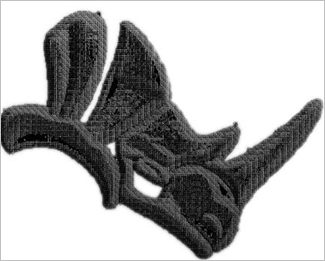
Example: Decimate Mesh on Export is unchecked
Aspect Ratio
This defines the ration of the width to the length of the triangles on the mesh.
Limiting Length
This is the maximum length for the chord segment.
Chordal Deviation
This is a maximum permitted distance from a facet face to the original mesh geometry.
This option allows the exported mesh to be closed or not. If the Close base of Mesh option is chosen, you can close the mesh by either a planar mesh or a mirror mesh. The effects of selecting each of these options on a simple puff shape are shown below:
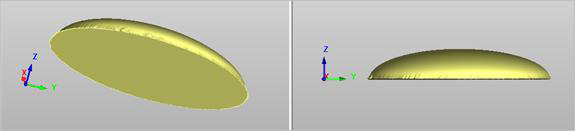
Closed mesh with a planar mesh selected
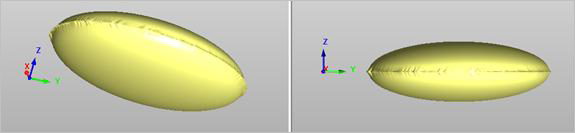
Closed mesh with a mirror mesh selected
Show context ToolTips
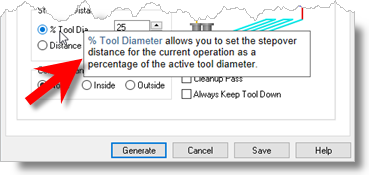
Check this box to display Context ToolTips when the mouse moves over a parameter in a dialog. A definition of the parameter will pop-up automatically. Note that Context ToolTips may not be available for ALL dialogs. You can also set the ToolTip Delay in seconds. This is the amount of time it takes to display the Context ToolTip when the mouse activate it.