The following Advanced Cut Parameters are similar for the Mill operations where the tab is available. Some parameters listed below may not be supported for every applicable operation. These parameters can be used to control the cuts for high speed machining and are designed to reduce rapid acceleration and deceleration of the machine during the cutting process. They allow smoothing of the toolpaths by introduction of arcs.
|
 You can use these parameters even if the controller does not support arcs. In this case, make sure that the output is set to

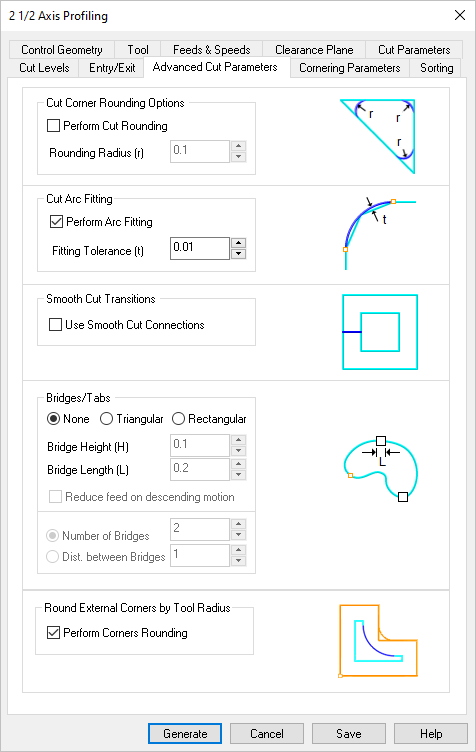 Dialog Box: Advanced Cut Parameters tab, Milling Operations |
 Some options shown below are not available for all operations.
Check this box to round sharp corners in the toolpath and specify a Rounding Radius (r). Fillets of the specified radius will be introduced in sharp corners if possible. These fillets will only be introduced on planes parallel to the XY plane.
|


Check this box to Perform Arc Fitting . The system will attempt to fit arcs along the computer toolpath if they lie within the three principal planes (XY Plane, XZ Plane or YZ Plane).
|


Check this box to add "S" or "C" shaped cut transitions between two successive offset cuts that lie parallel to the XY plane. These Smooth Cut Connections reduce rapid acceleration and deceleration on the machine and extend tool life.
|


For the 2½ Axis Profiling operations you can insert bridges/tabs to hold the part on the table during the actual machining operation. First select a bridge type and then complete the available parameters.
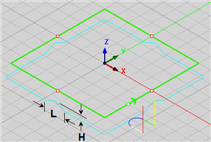
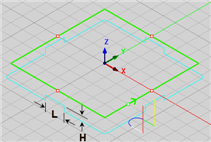
Bridge Types First, select the type of bridge to create or pick None for no bridges. None No bridges will be created automatically. Triangular A triangular bridge will be created. Enter the Bridge Height (H) and Bridge Length (L). Rectangular A rectangular bridge will be created. Enter the Bridge Height (H) and Bridge Length (L). Trapezoidal A trapezoidal bridge will be created. Enter the Bridge Height (H), Bridge Length (L) and Bridge Distance (D). Distance (D) is measured across the top of the bridge as shown in the illustration below. 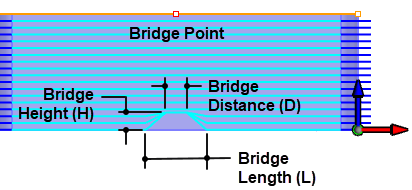 The Trapezoidal Bridge Type Bridge Height (H) This is the Height of the Bridge measured from the bottom of the cut. Bridge Length (L) This is the Length of the Bridge. If Bridge Points are present, this distance is centered on each Bridge Point. If no Bridge Points are present, the center of each bridge is evenly spaced based on the Number of Bridge Points entered in this dialog. Bridge Distance (D) For Trapezoidal Bridges, this is the distance across the top of the Bridge as shown in the illustration below. The Trapezoidal Bridge Type Reduce feed on descending motion: Check this box to reduce the feed rate for the descending motion after each tab. The reduction is governed by the Plunge between levels percentage value defined by the Feeds & Speeds tab of the operation. 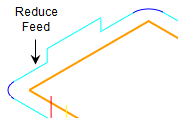 Reduce Feed when Descending Number of Bridges Enter the total number of Bridges to add automatically. If no Bridge Points are present, the accumulative distance measured around the perimeter of the selected Control Geometry is divided by this number to determine the location of each bridge point. Each Bridge is then centered at these locations. 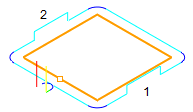 Number of Bridges Distance between Bridges This parameter specifies the distance between each bridge if no Bridge Points are present. The first Bridge is measured from start point of the selected Control Geometry. 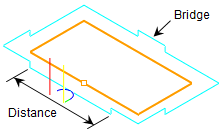 Bridges & Tabs: Distance Bridge Notes: 1.A bridge point will be ignored if it is located too close to an entry or exit point. 2.Bridge can span about sharp corners so pay attention to the resulting bridge locations and always perform a cut material simulation to understand how each bridge will be cut. 3.The Number of Bridges parameters is ignored if the Control Geometry is a Pre-Defined Region with Bridge Points. 4.For information on creating bridge points, see Predefined Machining Regions and Manual Bridge Points on Selections.
|


 You may have heard the term
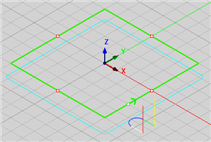
 Check this box to round any external corners in your control geometry automatically. The rounding radius equals the active tool radius. "External" depends on which side of the control geometry the tool is moving. The illustrations below shows an external corner when the tool is traveling along the inner side of the control geometry. This is helpful when cutting inlay pockets and profiles.
|

