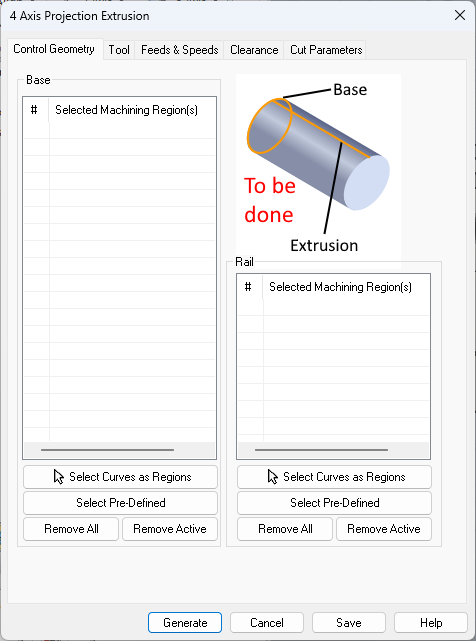
If you pick this button, the Select Pre-defined Machining Regions dialog will display, allowing you to select one or more Regions. This operation dialog will then re-appear with your region selections listed. Pre-Defined Regions can be created using the options on the Regions tab of the Machining Objects Browser.
Remove All
Pick this button to Remove AllRegions from the list. The geometry itself is not deleted from the part model.
Remove Active
Pick this button to Remove the selected Active region from the list. You can select multiple Regions from the list using the Ctrl key and then pick this button to remove them all. The geometry itself is not deleted from the part model.
Pick this button to select visible curves or surface edges to use as the Rail curves. Note that these curves and/or surface edges MUST BE visible every time this 4 Axis Projection Extrusion operation is generated.
Select Pre-Defined
If you pick this button, the Select Pre-defined Machining Regions dialog will display, allowing you to select one or more Regions. This operation dialog will then re-appear with your region selections listed. Pre-Defined Regions can be created using the options on the Regions tab of the Machining Objects Browser.
Remove All
Pick this button to Remove AllRegions from the list. The geometry itself is not deleted from the part model.
Remove Active
Pick this button to Remove the selected Active region from the list. You can select multiple Regions from the list using the Ctrl key and then pick this button to remove them all. The geometry itself is not deleted from the part model.